
Navigate to: https://grubhub.okta.com/
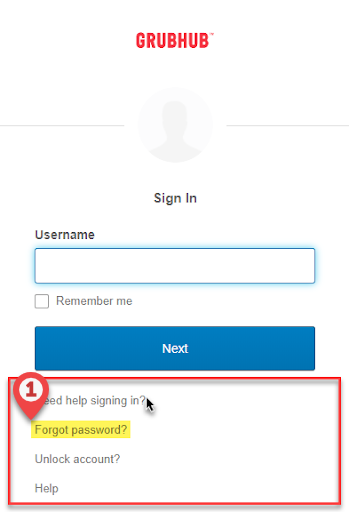
Click Forgot password?
Enter your Grubhub username (not your work email address)
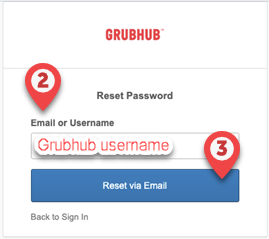
Click the Reset via Email button
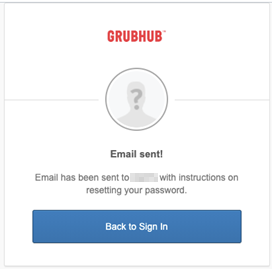
 Go to your work email inbox and find the Okta email, it will look like this
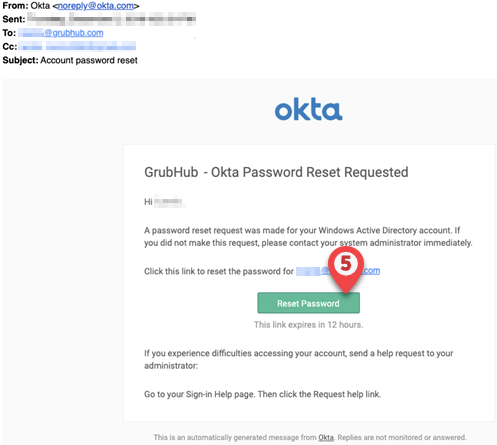
Click the Reset Password button
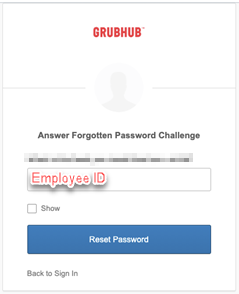
The Okta webpage will open back up, and ask you to answer your Security Question.
If your security question was set up correctly, enter your Employee ID in the security answer field
Enter a new password twice. Make sure your new password follows the password requirements:
- At least 8 characters
- A lowercase letter
- An UPPERCASE letter
- A number (1-9)
- A symbol (!@#$%^&*)
The new password can NOT:
- Contain part of the Username
- Have been used previously (eg: Summer.2019 can not be changed to Summer.2020)
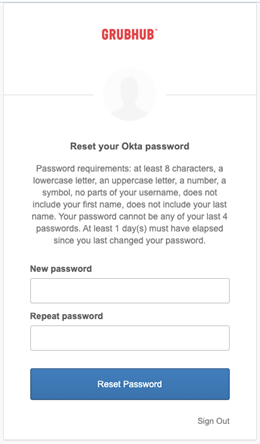
and Click Reset Password
Note: Okta passwords can not be changed more than one time per 24 hours